 Hielke van Braak
Updated :
Hielke van Braak
Updated :

1. Hit the windows button + R, the following screen appears.
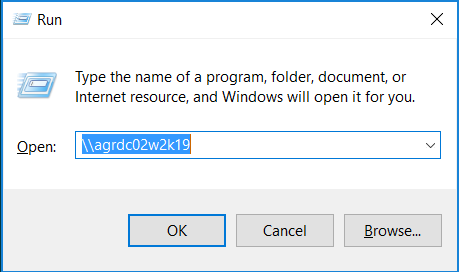
2. Type: \\agrdc02w2k19 and hit enter.
3. You may need to log in now, if prompted, choose 'Login with another user' and log in with your mail address and password.
4. Now you will see the following screen, right click on the printer named Kyocera Black and click on connect. Do the same with Kyocera Color.
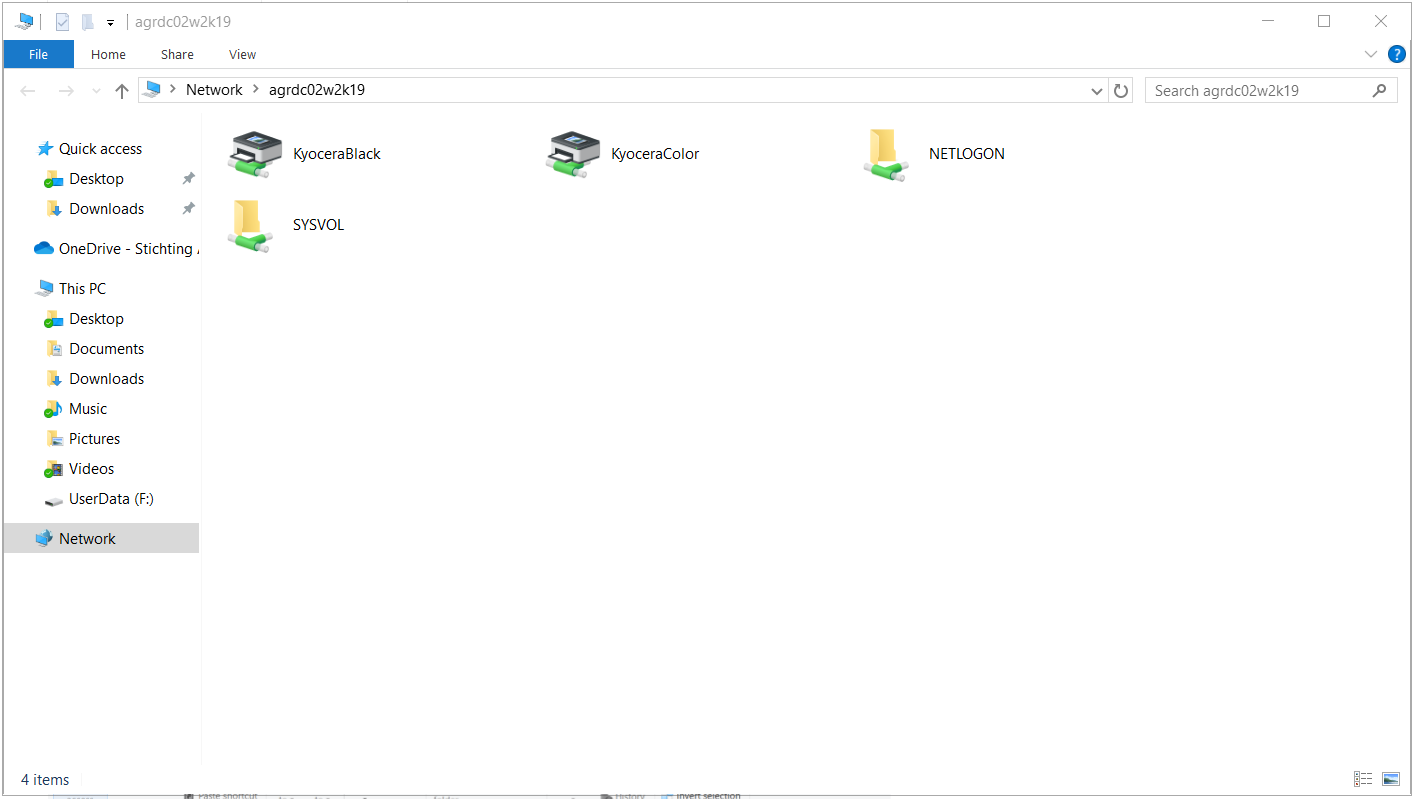
5. The printer has now been added.
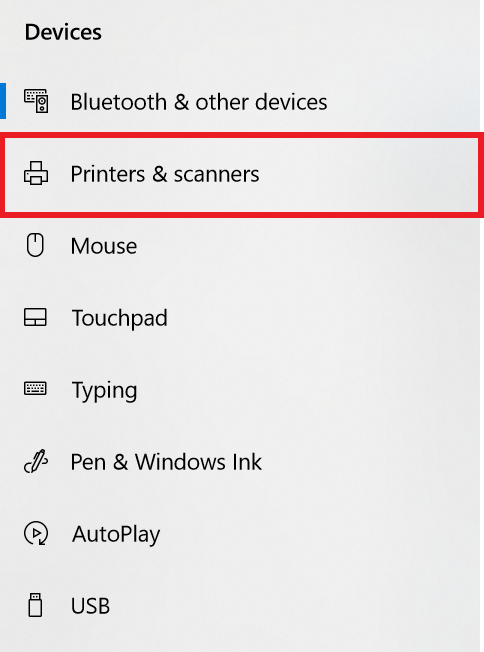
6. Navigate to settings and click on Devices
7. Click on Printers & scanners
8. You'll see Kyocera Black on agrdc1 and Kyocera Color on agrdc1
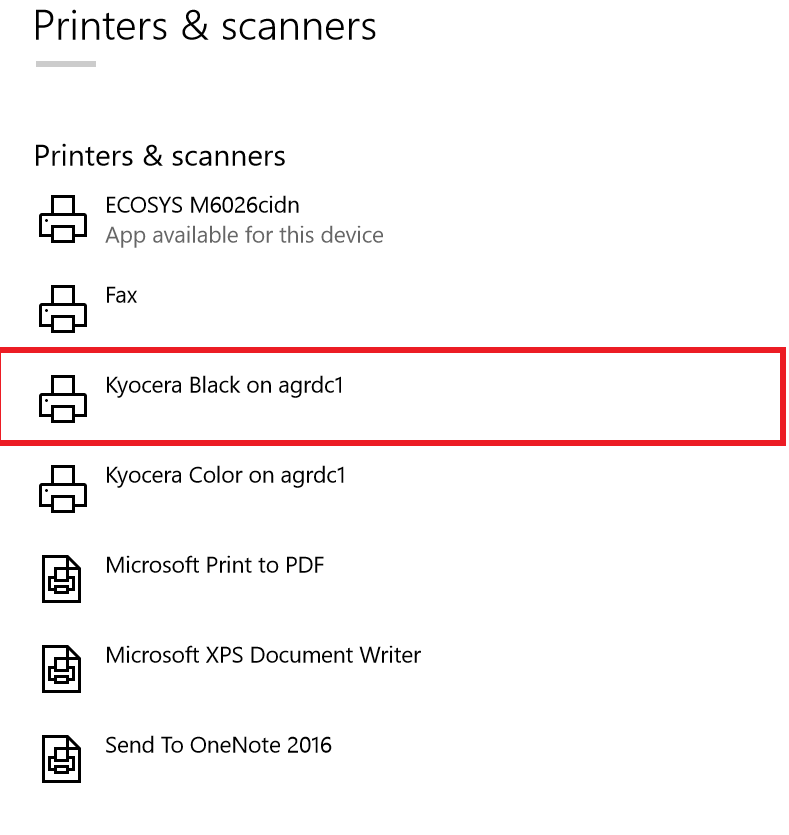
9. Click on Kyocera Black and click on Manage and click on Set as default.
10. The printer is now set as default.