 Permanently deleted user
Updated :
Permanently deleted user
Updated :

The core function of SharePoint in AIN is to enable saving documents with the AIN tab Documents directly in SharePoint in a format that is easier accessible . The SharePoint key documents functionalities remain unchanged in AIN. For the time being, sync offline folder in AIN is only available for modules Projects and Assignments by using the sync button. Which documents to store in which default folder is listed in Appendix 1.
Where can I find the integrated SharePoint folder in AIN?
There is a new tab called Documents in the modules Persons, Organisations, Projects and Advisory services. Within these modules you can find the tab Documents.
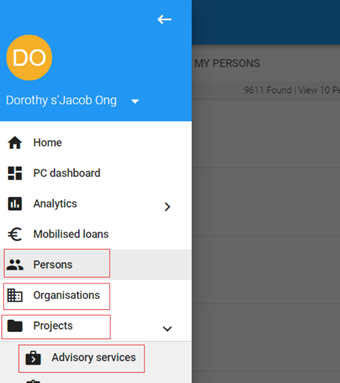
Module Persons
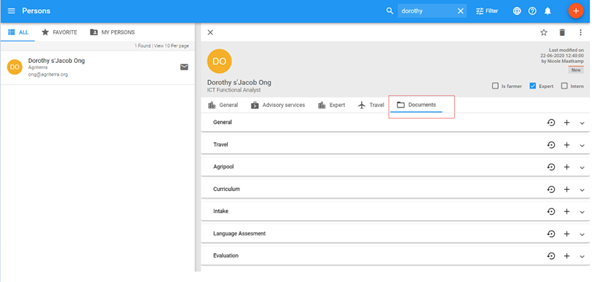
In module Persons you will find all relevant documentation in one central view which is in the new tab Documents. First step is to search for the persons name, then click on tab Documents:
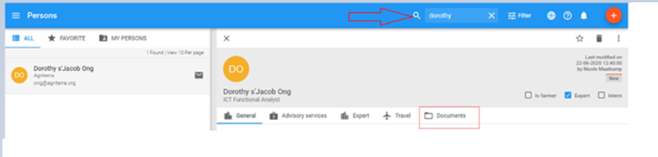
Here within the Documents tab, you will see default SharePoint folders where you can store and work in your documents as you are accustomed to in SharePoint:
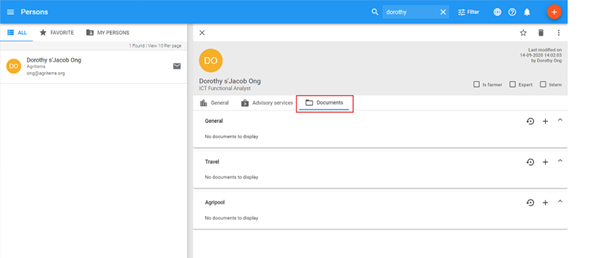
Default folders in module Persons are: General – Travel - AgriPool
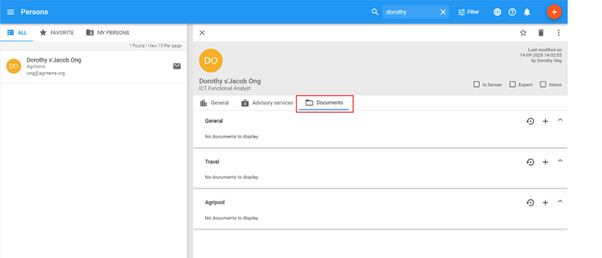
Default folders of an Expert in module Persons are: General – Travel – AgriPool – Curriculum – Intake – Language Assessment – Evaluation
Module Organisations
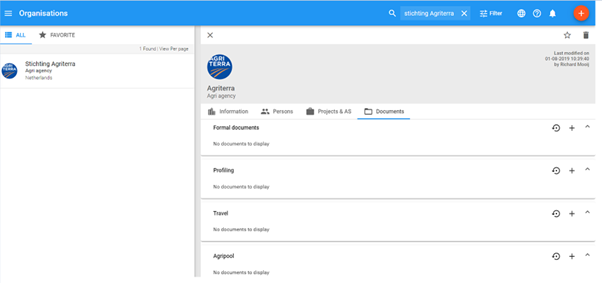
In module Organisations you will find all relevant documentation at one central view, which is in the new tab Documents. First step is to search for the organisation, then click on tab Documents:
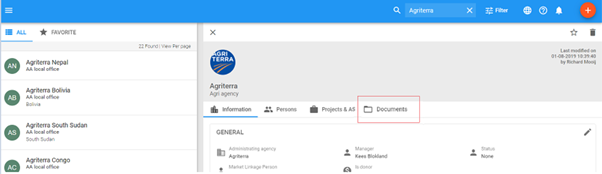
Within the Documents tab you will find default SharePoint folders where you can store and work in your documents as you are accustomed to in SharePoint. The default folders in module Organisatons are: General – Formal documents – Profiling – Travel – AgriPool - Evaluation
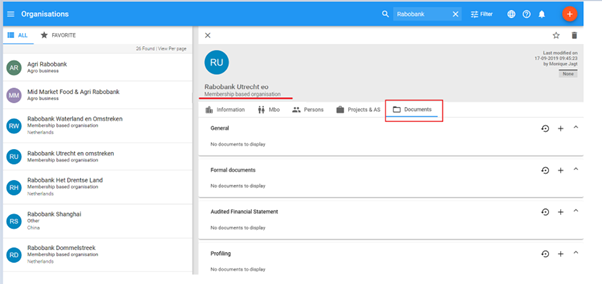
MBO folders in Organisations are: General – Formal documents – Audited Financial Statement – Profiling – Travel – AgriPool - Evaluation
Module Projects
In the module Projects you will find all relevant documentation at one central view which is in the new tab Documents. First step is to search for the project, then click on tab Documents:
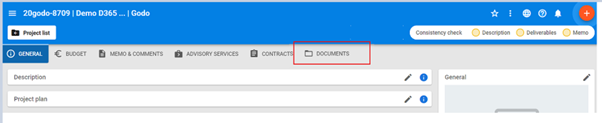
Within the Documents tab you will see default SharePoint folders where you can store and work in your documents as you are accustomed to in SharePoint. The default Project folders are: General – Correspondence – Financial – Financing – Reporting
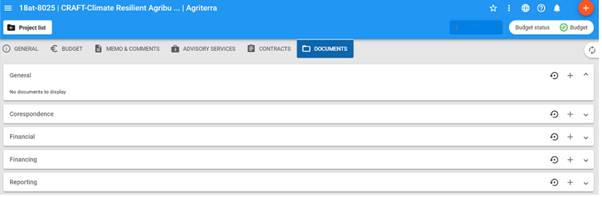
Module Advisory Services (AV/EV, Missions)
In the module Advisory Services you will find all relevant documentation in one central view, which is in the new tab Documents. First step is to search for the advisory service, then click on the tab Documents:
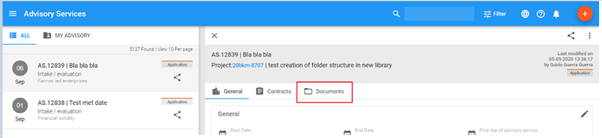
Here within the Documents tab you will see default SharePoint folders where you can store and work in your documents as you are accustomed to in SharePoint. The default Advisory Services folders are: Preparation – Report – Financial – Travel – AgriPool
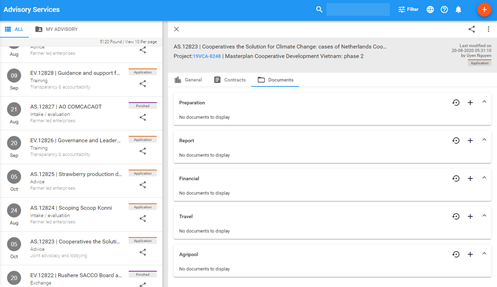
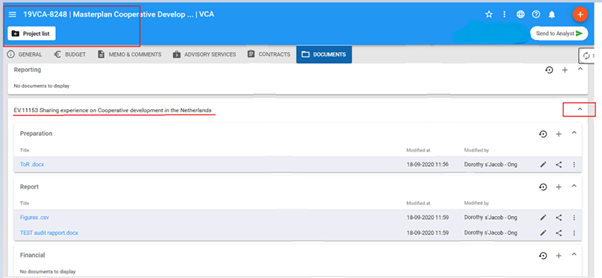
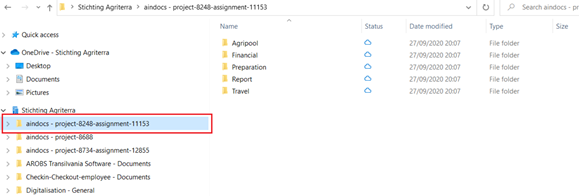
The Advisory Services folders are also visible in the Project they belong to. Within the Project in the tab Documents, you are able to unfold the folder by clicking the downward parentheses:
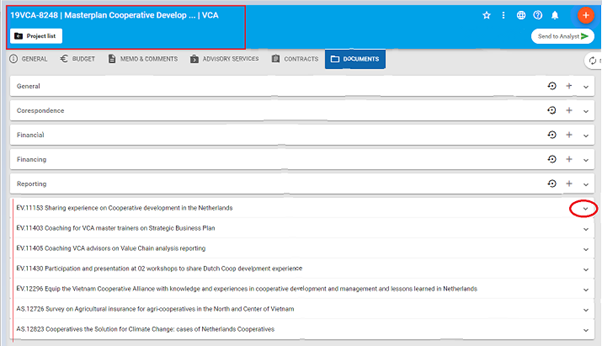
Via unfolding a folder you are able to work in the the folder-list and also in the related Assignment Service of the project:
SharePoint key functionalities in AIN Documents
Document functionalities in AIN remain the same as the current known SharePoint key functionalities.
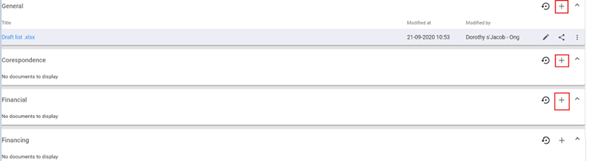
Upload of document files
Select the folder you where you want to upload your document. Click on the + icon on the command bar. The document will be uploaded. Note: upload speed depends on the quality of the internet connection.
Open & edit document
Select the document you want to work on or that you want to edit. The document will open and is editable in Office Online.

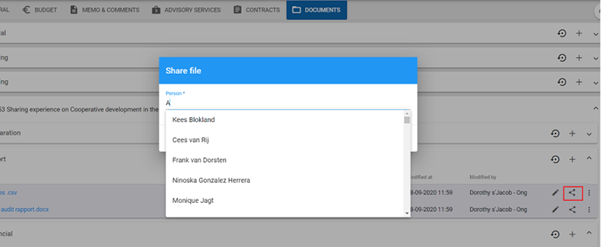
Sharing a document
Select the document you want to share and click on the icon share  on the command bar, and enter the names of the people you want to share it with. Then click on CONFIRM button
Renaming a document
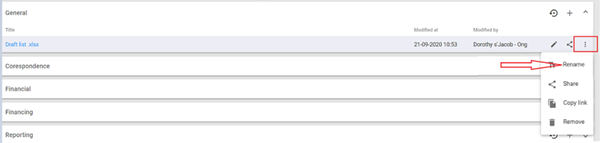
Select the document you want to rename and click on the 3 dots  icon. Then select Rename on the command bar. In the Rename dialog box, type the new name into the field, and then click CONFRIM:

Deleting/removing a document
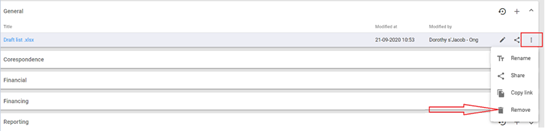
Select the document you want to remove. Click 3 dots icon and select the bin icon on the command bar to remove the document. In the remove confirmation dialog box, click CONFIRM
Copying a link
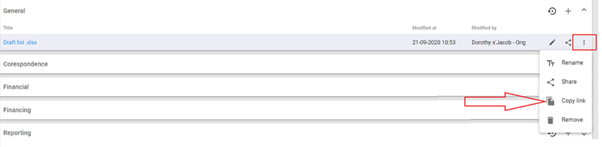
Select the document you want to copy the link. Click 3 dots  icon and select Copy link on the command bar. The link is automatically copied to your clipboard. Paste the link (Ctrl+V) wherever you want, such as a text message, e-mail or on a website.
To make Project library available offline - Sync project map
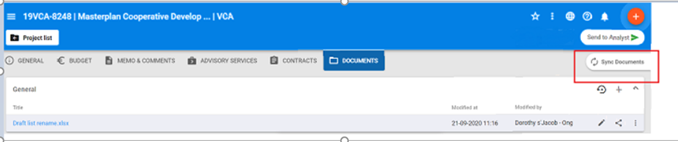
OneDrive  must be enabled to use the SharePoint Sync button within AIN. In able to see the sync button, there must be uploaded documents in the default folders of tab Documents.
Click on  icon which is the sync button. This will shuffle visible from the right:
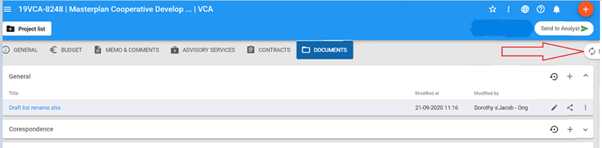
Click on Sync Documents:
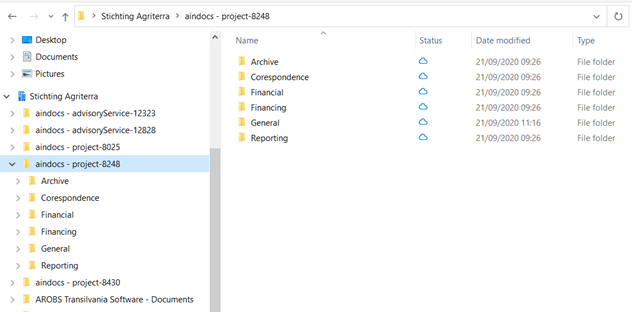
When OneDrive sync update disappears, your offline Project document library is available:
To make Mission library available offline - Sync Advisory Services
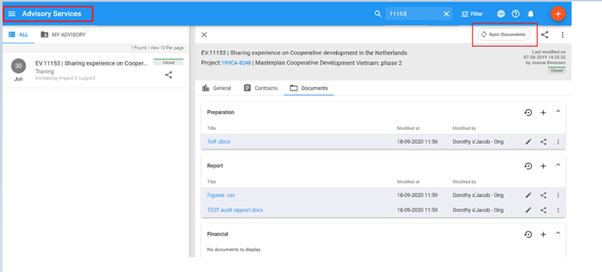
OneDrive  must be enabled to use the SharePoint Sync button within AIN. In able to see the sync button, there must be uploaded documents in the default folders of tab Documents of Advisory Service.
Click on Sync Documents:
OneDrive updates the syncing process:
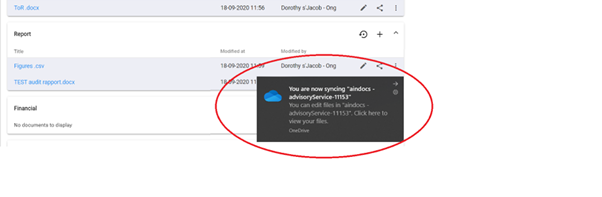
When OneDrive update disappears, your offline Advisory Service document library is available:
Appendix 1. Which documents to put in which folder map?
Folder map of Organisations
|
General |
|
|
|
|
|
Formal documents |
|
|
Proof of legal personality/certificate of registration, By-laws, Audited Reports, Business Plans, Strategic Plans |
|
|
Profiling |
|
|
|
Scoping and company assessment reports, Health checks |
|
Travel |
|
|
|
|
|
AgriPool |
|
|
|
|
|
Evaluation |
|
|
|
|
Folder map MBO folder in Organisation
|
General |
|
|
|
|
|
Formal documents |
|
|
Proof of legal personality, Certificate of registration, By-laws, Business Plans, Strategic Plans |
|
|
Audited Financial Statement |
|
Audited Reports with year, KPI schedule, Analyse audit |
||
|
Profiling |
|
|
|
Scoping and company assessment reports, Health checks |
|
Travel |
|
|
|
|
|
AgriPool |
|
|
|
|
|
Evaluation |
|
|
|
|
Folder map of Projects
|
General |
|
|
|
Action plan, other information |
|
Correspondence |
|
|
End of project Letter, letters / emails send to the client |
|
|
Financial |
|
|
|
copy of bank transfers, copy of bank statements from clients |
|
Financing |
|
|
project contracts and annexes per year, bank form, signed project contract |
|
|
Reporting |
|
|
Year-end Project Audited Action plan, signed annex 1 and 2, financial report checked by analist, reporting memo |
|
Folder map of Advisory Services
|
Preparation |
|
ToR, HFF, RAF, request form assignment / event |
|
Report |
|
Assignment report |
|
Financial |
|
Mission expense form , budget, transfer invoice, proof of payments, final Invoices |
|
Travel |
|
Contracts, tickets |
|
Agripool |
|
CV expert, evaluation form |
For any AIN questions, support or live demo of SharePoint in AIN please sent a mail to: support@agro-info.net