 Hielke van Braak
Updated :
Hielke van Braak
Updated :

Step 1: Add printer
- Open System Preferences.
- Click Print & Scan.
- Click the + sign.
- Click Advanced.
No Advaced menu?
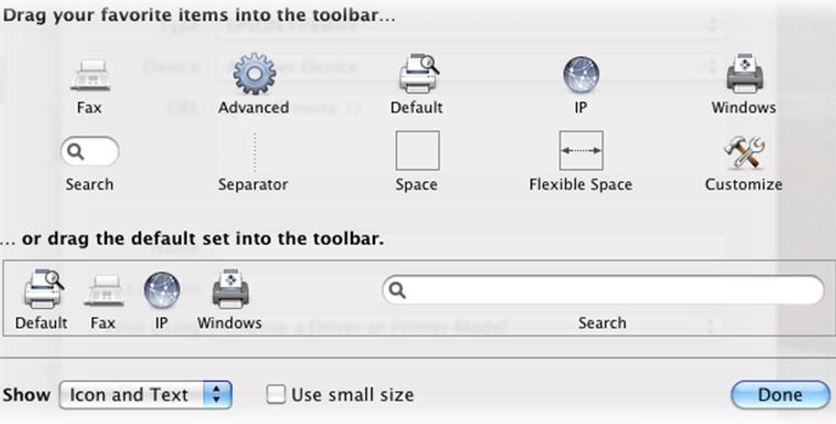
If you do NOT have the Advanced Menu icon in the Add Printer Pop-up Menu, then CTRL-click in the menu and choose Customize Toolbar. Then drag the Advance Icon to the menu area to have it appear in your Add Printer main menu. Then click Done.
- Under the Type drop down menu choose ‘Windows printer via spoolss'.
- The Device drop down is by default ‘Another Device’.
- In the URL section type the following: smb://agrdc02w2k19/KyoceraBlack for the black/white driver and smb://agrdc02w2k19/KyoceraColor for the color driver.
- In the Name section type a preferred name like ‘Kyocera Black’ for and for the Color 'Kyocera Color'.
- In the Print Using drop down menu, choose ‘Select Printer Software’, pick the following software: ‘Generic PCL Printer’ and click OK.
- Click Add and it is ready for use.
Step 2: Printing
After you have sent a print job to the printer, you will be asked for your credentials. Type your mailadress like lastname@agriterra.org and password.