 Hielke van Braak
Updated :
Hielke van Braak
Updated :

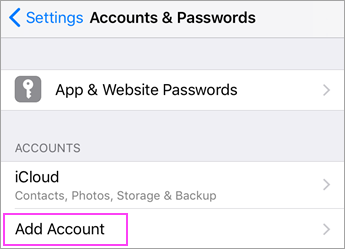
- Go to your iPhone or iPad's Settings > scroll down and tap Accounts & Passwords > Add Account.
Note: If you're on iOS 10, go to Mail > Accounts >Add Account.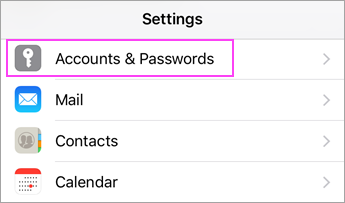
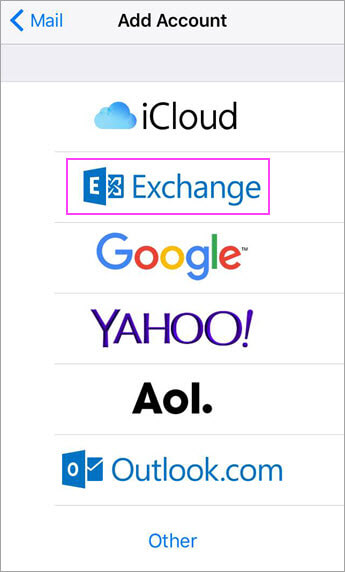
- Select Exchange.
- Enter your Agriterra email address and a description of your account. Tap Next.

Tap Sign In.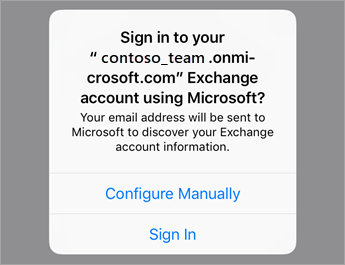
4. Enter the password associated with your email account. Tap Sign in or Next.
5. The Mail app may request certain permissions. Tap Accept.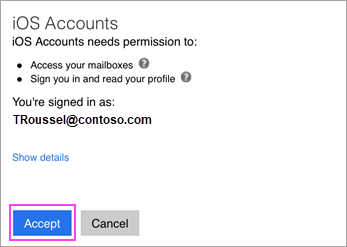
6. Choose the services you want to sync with your iOS device and tap Save. You're done!
This is a copy of the Microsoft source page below and was last updated on January 3, 2018.
Source: https://support.office.com/en-us/article/set-up-email-using-the-ios-mail-app-7e5b180f-bc8f-45cc-8da1-5cefc1e633d1?ui=en-US&rs=en-US&ad=US